- Name, description and price appear directly alongside each dish.
- Categories provide orientation; labels complement the description.
- The editing view shows the same content as the guest view.
- Check the public guest view after every change.
What does a digital menu actually look like? Here we show a benvido menu from Landgasthof Schickh, focusing on one specific dish and its editing view.
The screenshots were taken on 8 October 2026. The current menu may differ from the screenshots.
1. Show dish, description and price together
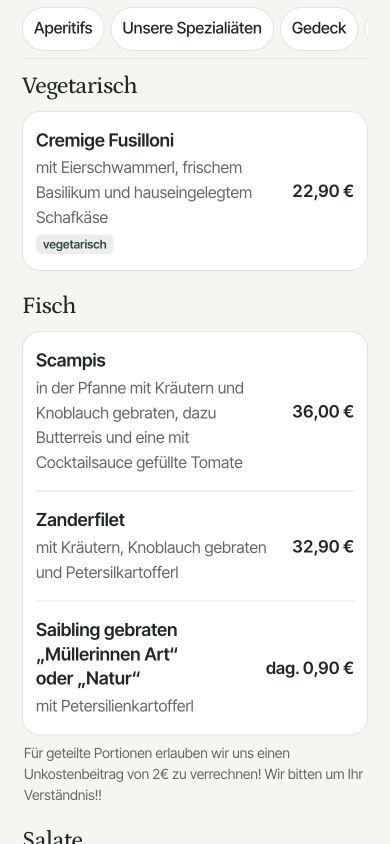
‘Cremige Fusilloni’ appears on the menu with chanterelles, fresh basil and house-marinated sheep’s cheese. The €22.90 price sits directly alongside it. Guests do not need to look for the description or price in a separate key.
Idea to apply: Use a short dish name and describe the key ingredients below it. Check particularly long dish names on a smartphone.
2. Separate categories and labels
The screenshot shows the categories ‘Vegetarian’ and ‘Fish’. The pasta dish also has a visible ‘vegetarian’ label. This helps guests identify it but does not replace complete allergen information.
Additional categories are visible as navigation at the top. For your menu, choose familiar categories and check whether guests can quickly find the section they want.
3. What the team edits for the same dish
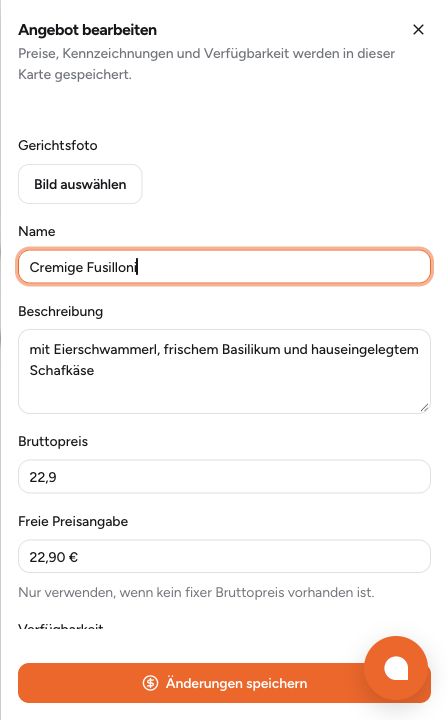
Name, description and gross price are accessible together in the editor. According to the on-screen note, the free-form price field is only intended for cases without a fixed gross price. For a dish with a fixed price, use the numeric gross-price field.
Check the public view after saving. This helps you spot typos or awkward line breaks.
4. How to apply this to your business
| Situation | Suitable presentation |
|---|---|
| Inn with a seasonal menu | Familiar categories, precise ingredients and current prices. |
| Café serving breakfast | Show serving times, included items and surcharges alongside the offer. |
| Restaurant with a set menu | Explain the number of courses, total price, pairings and adaptation options together. |
Start with the situation that fits your business and test the presentation with your current menu.
5. Test it yourself before publishing
- Open the menu on a small smartphone.
- Find a dish with its description and price.
- Check labels and allergen information.
- Check a price in the editor and compare it with the guest view.
- Scan the QR code and check that it leads to the current menu.
You can view the public menu of Landgasthof Schickh here. Our guide explains the differences from a print file: comparison of web menus and PDFs.
If you want to create your own menu, you can find digital menu product page the appropriate next step on the product page.